
01 · Install
下载与安装
Download and install
只从官网下载安装包。三个平台的安装包都通过本站 HTTPS 直接提供,不需要前往 GitHub Release。
Download only from the official website. Packages for all three platforms are delivered directly over HTTPS without a GitHub Release detour.
下载 .exe,双击后按中文安装向导完成。可创建桌面快捷方式并关联 Markdown / TXT 文件。
Download the .exe and follow the installer. It can create a desktop shortcut and associate Markdown / TXT files.
下载通用 .dmg,同时支持 Intel 与 Apple Silicon;打开后将应用拖入“应用程序”。
Download the universal .dmg for Intel and Apple Silicon, then drag the app into Applications.
Debian / Ubuntu 使用 .deb;需要便携运行时选择 AppImage,并先授予执行权限。
Use the .deb on Debian / Ubuntu, or choose the portable AppImage and make it executable first.
首次安装提醒:当前版本尚未购买代码签名证书,Windows SmartScreen 或 macOS Gatekeeper 可能显示安全提醒。请先确认文件来自 ssssa.cn / qm.ssssa.cn,再按系统提示继续。First-install notice: The current build is not code-signed, so Windows SmartScreen or macOS Gatekeeper may warn you. Confirm the file came from ssssa.cn / qm.ssssa.cn before continuing.
02 · First use
第一次启动:三种开始方式
First launch: three ways to begin
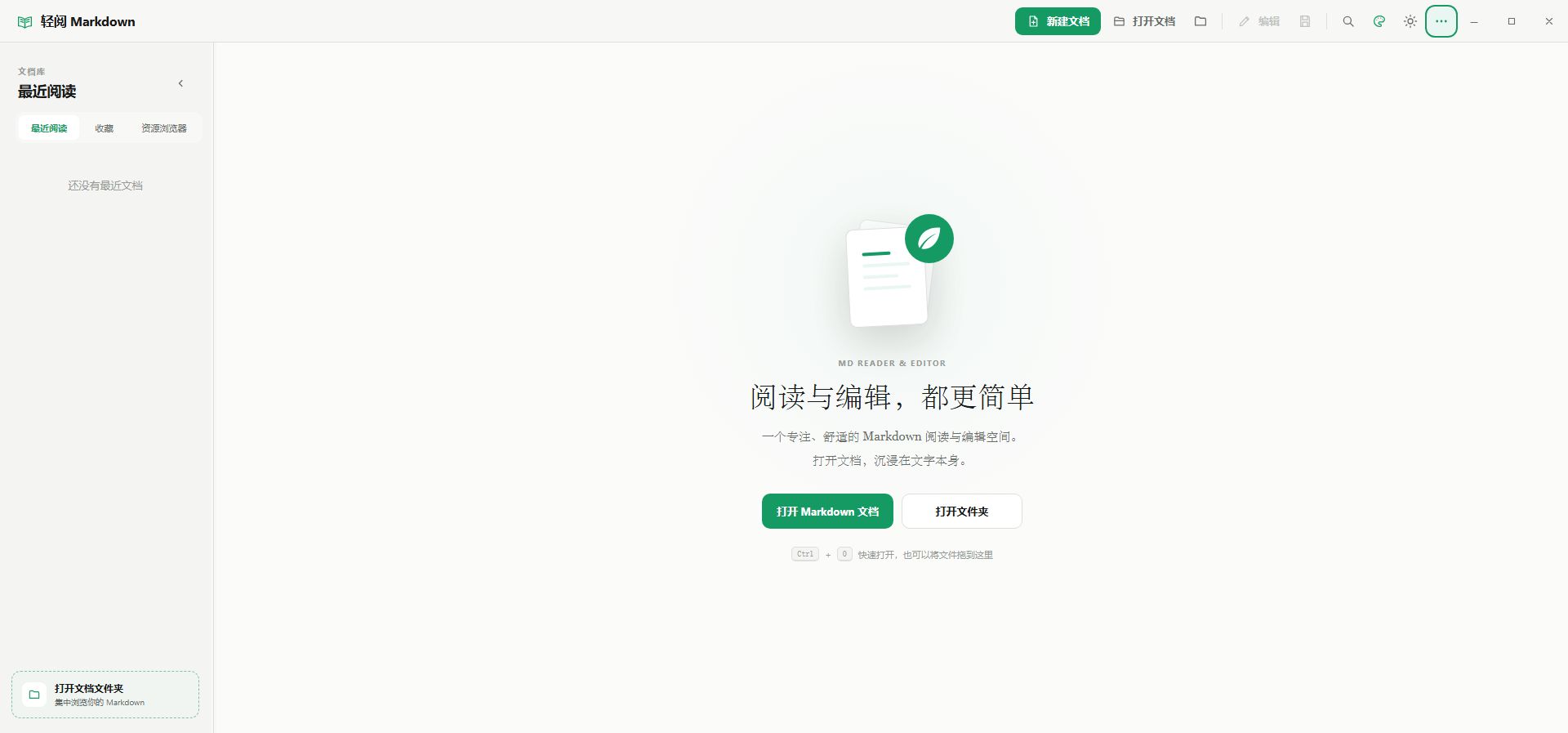
- 新建文档点击“新建”,立即进入编辑。草稿会保存在安全位置;另存为正式文件后,临时草稿会自动清理。
- 打开单个文件点击“打开文档”,选择
.md、.markdown、.mdown、.mkd或.txt;也可以把文件拖进窗口。 - 打开文件夹点击“打开文件夹”,在资源浏览器中按原有目录结构浏览本地文档。轻阅不会建立专有资料库。
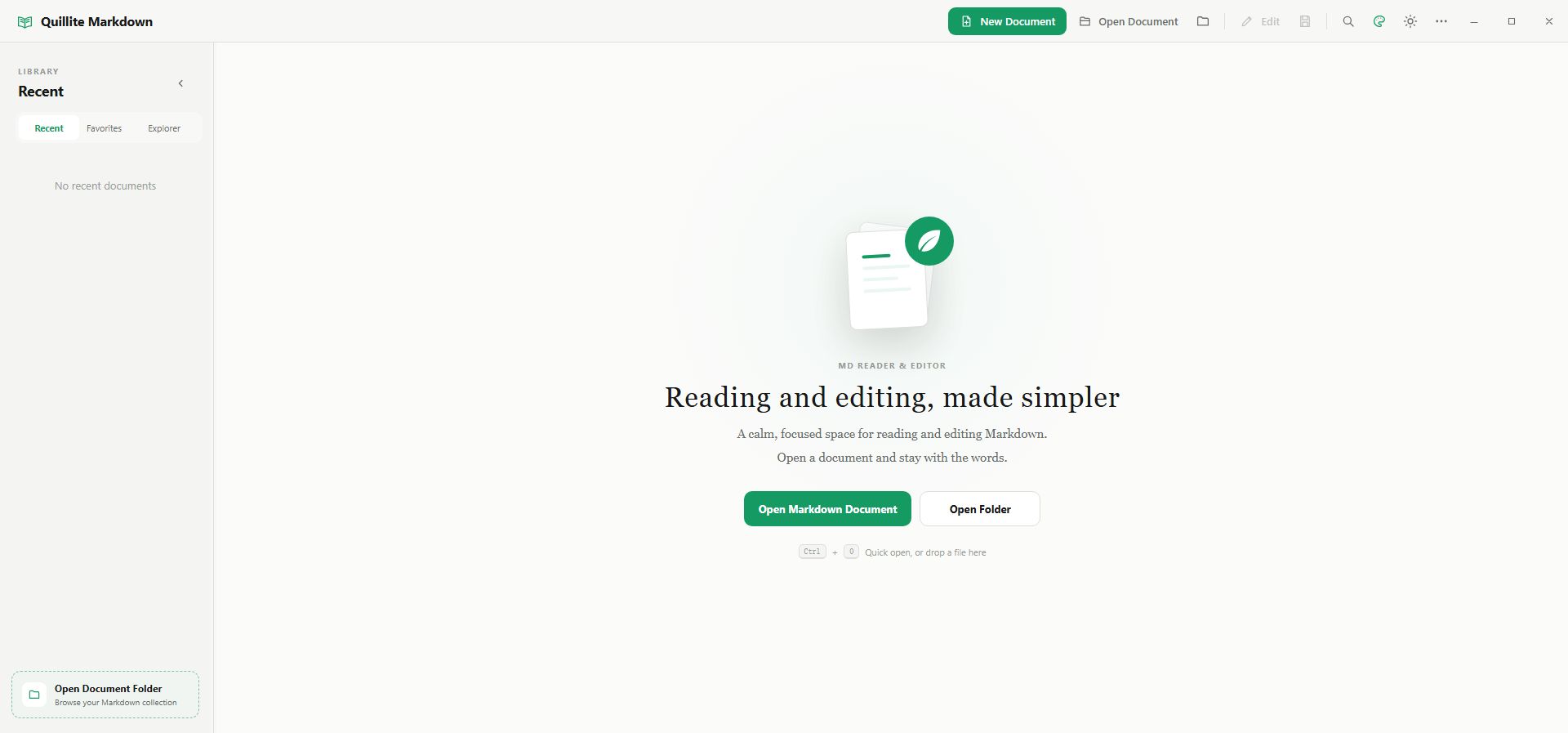
- New documentSelect New and start editing. The draft stays in a safe location and is cleaned up after Save As.
- Open one fileSelect Open Document for
.md,.markdown,.mdown,.mkd, or.txt, or drag a file into the window. - Open a folderSelect Open Folder to browse local documents in their existing directory structure. Quillite never creates a proprietary vault.
03 · Library
用文档库找回和管理本地文件
Find and manage local files in the library
左侧文档库包含“最近阅读”“收藏”和“资源浏览器”。这些视图记录的是本地文件位置,不会复制或上传文档。
The left library contains Recent, Favorites, and Explorer. These views remember local locations; they do not copy or upload documents.
普通记录最多保留 10 条。右键可置顶、编辑、另存为、收藏、定位或移除;“移除”只删记录,不删原文件。
Keeps up to 10 ordinary entries. Right-click to pin, edit, save as, favorite, reveal, or remove. Remove never deletes the source file.
置顶项不占最近 10 条名额,可拖动排序;收藏长期保留,可在收藏视图集中打开。
Pinned items do not consume the 10 recent slots and can be reordered. Favorites persist in their own view.
显示所选文件夹中的支持文件,记忆上次目录和视图;再次点击已激活的“资源”可更换文件夹。
Shows supported files in a selected folder and remembers it. Select the active Explorer tab again to choose another folder.
04 · Read
专注阅读长文档
Read long documents with focus
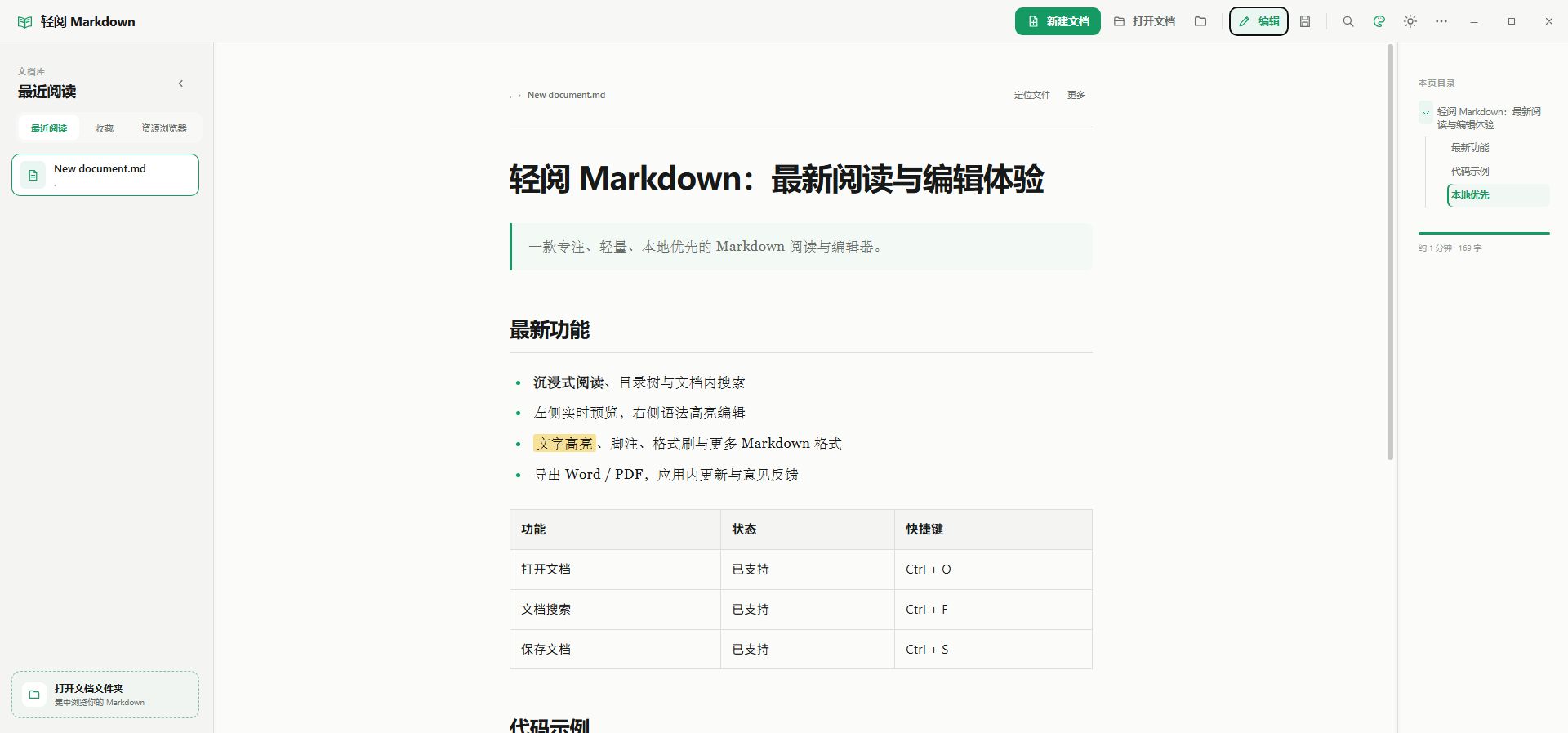
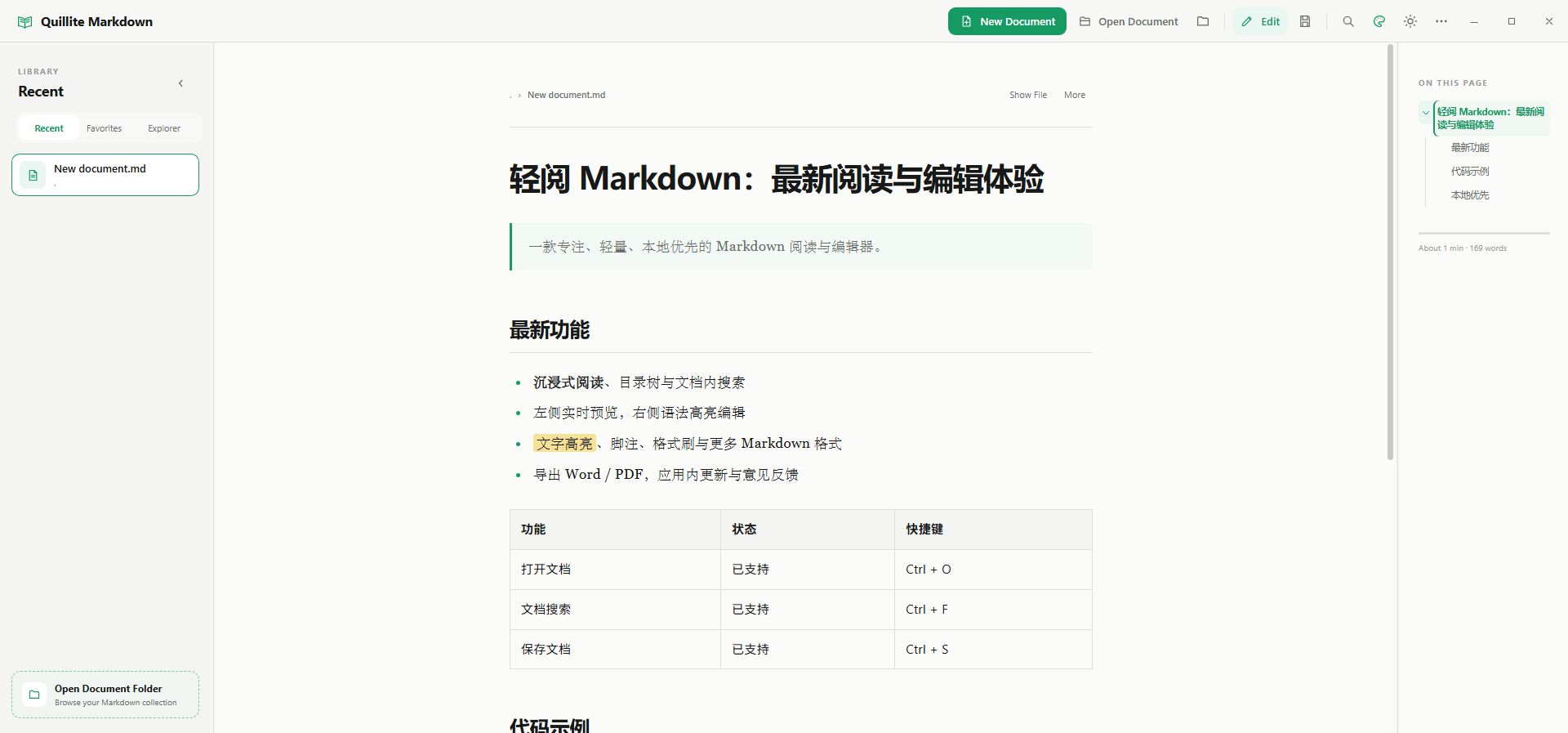
打开文件后默认进入阅读页。Markdown 会渲染标题、表格、任务列表、代码高亮、图片、脚注和公式;TXT 按纯文本保留原格式,不解析 Markdown。
Files open in reading mode. Markdown renders headings, tables, tasks, highlighted code, images, footnotes, and formulas. TXT preserves plain-text formatting without Markdown parsing.
- 右侧“本页目录”按标题生成可折叠层级树,点击标题定位正文,并跟随当前章节。
Ctrl / Cmd + F查找预览中的文字,包括行内代码和代码块。- 可拖动左右分隔线调整文档库和目录宽度,布局会自动记忆。
- 顶部可定位原文件、另存为、导出、打印;右下角按钮快速回到顶部。
- 外部程序修改文件后,切回轻阅会重新读取;若当前有未保存内容则不会覆盖。
- The right outline creates a collapsible heading tree, navigates to sections, and tracks the current one.
Ctrl / Cmd + Fsearches rendered text, including inline and fenced code.- Drag the left and right dividers to resize the library and outline; the layout is remembered.
- Use the top actions to reveal, save as, export, or print, and the corner control to return to the top.
- When another program changes the file, Quillite reloads it on focus unless you have unsaved edits.
05 · Edit & save
分栏编辑、实时预览与安全保存
Split editing, live preview, and safe saving
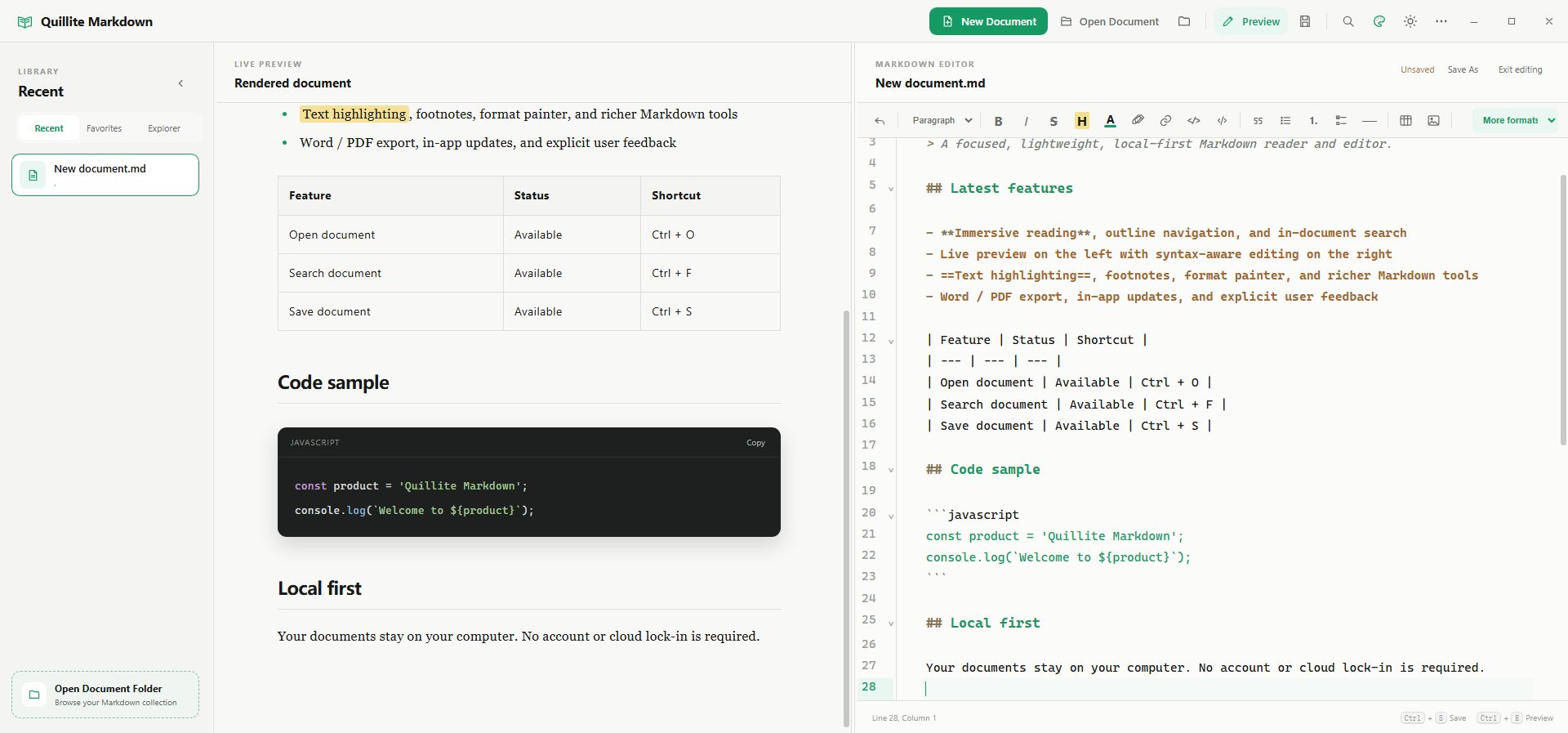
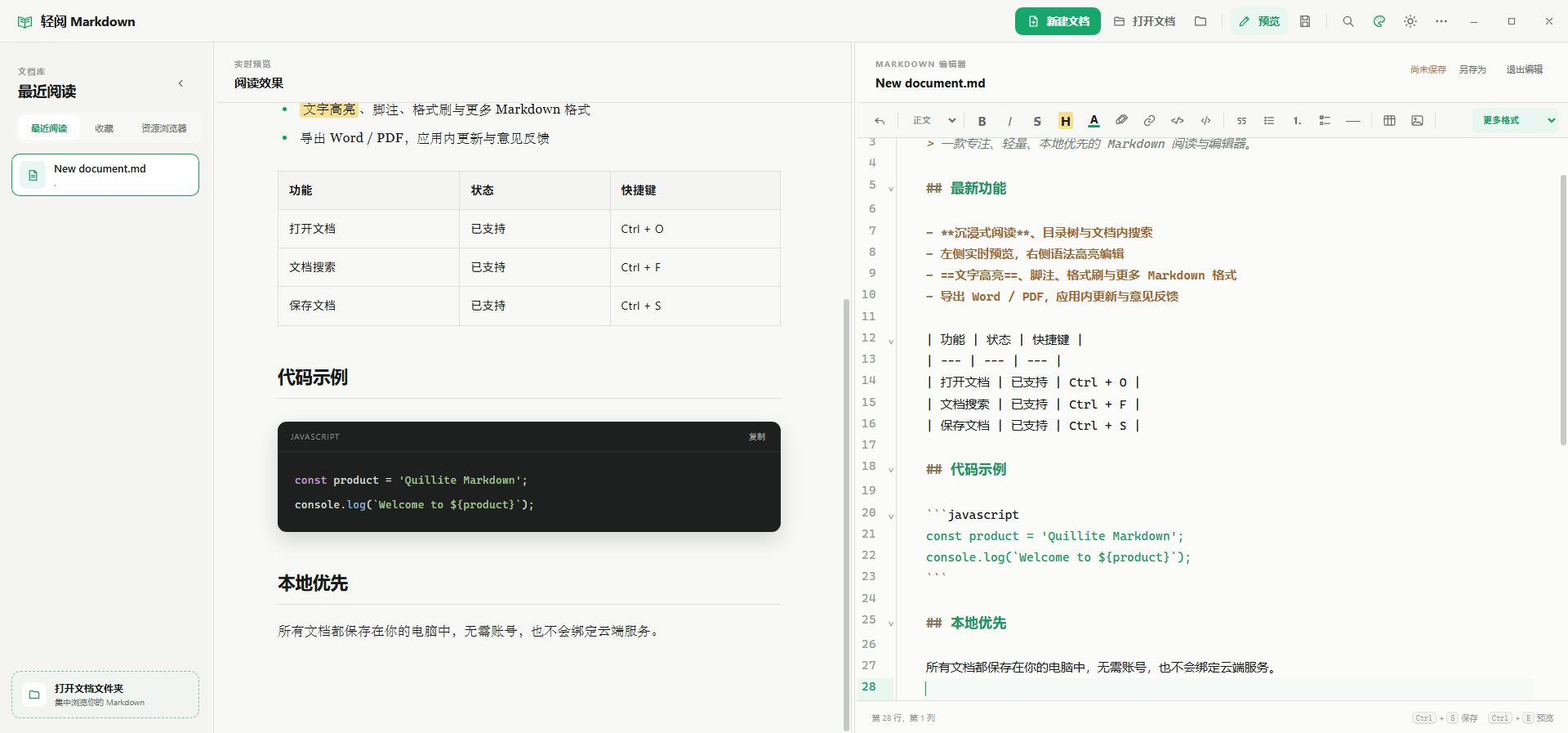
点击顶部“编辑”或按 Ctrl / Cmd + E 进入分栏编辑:左侧是实时预览,右侧是 Markdown 源码。移动光标时预览会跟随对应段落。
Select Edit or press Ctrl / Cmd + E for split editing: live preview on the left, Markdown source on the right. The preview follows the cursor.
Ctrl / Cmd + S 立即保存;编辑期间每 10 秒自动保存。未保存修改在关闭窗口或切换文件时会受到保护。
Ctrl / Cmd + S saves immediately; editing autosaves every 10 seconds. Unsaved changes are protected when closing or switching files.
编辑模式按 Ctrl / Cmd + F 查找 Markdown 源码并支持替换;阅读模式则查找渲染后的内容。
In edit mode, Ctrl / Cmd + F finds and replaces source. In reading mode it searches rendered content.
微信缓存、只读目录或被占用的文件不会强行写入。选择“另存为副本并编辑”,软件会打开新副本并保留原文件。
Quillite never forces writes to chat caches, read-only folders, or locked files. Choose Save a copy and edit; the original stays untouched.
阅读页或编辑器均可另存为新的 Markdown 文件。新建草稿完成另存后会自动迁移最近、收藏和置顶状态。
Save As is available from reading and editing. Saving a draft migrates its recent, favorite, and pin state.
06 · Format & formulas
使用格式工具栏编写完整 Markdown
Write complete Markdown with the formatting toolbar
先选中文字再点击格式按钮,或把光标放在要插入的位置。窗口较窄时,低频按钮会自动收入“更多格式”。
Select text before choosing a format, or place the cursor where content should be inserted. Less-used actions move into More Formats on narrow windows.
H1–H6、正文、加粗、斜体、粗斜体、删除线、高亮、48 色文字、下划线、上下标和行内代码。
H1–H6, paragraph, bold, italic, bold italic, strikethrough, highlight, 48 text colors, underline, scripts, and inline code.
引用、无序/有序/任务列表、分隔线、表格、代码块、强制换行、HTML/折叠区块和注释。
Quotes, bullet/number/task lists, rules, tables, fenced code, hard breaks, HTML/details blocks, and comments.
普通链接、引用式链接、自动链接、脚注、本地图片和在线图片。代码块可选择 19 种常用语言。
Links, reference links, autolinks, footnotes, local or remote images, plus 19 common fenced-code languages.
格式刷可复制选中文本格式;“学科公式”提供 79 种模板,支持行内、块级、编号和 mhchem 化学式。
The format painter copies selected formatting. Subject Formulas offers 79 templates for inline, display, numbered, and mhchem notation.
查看 9 个学科分类、79 个内置模板,以及可复制的 LaTeX、化学式与公式编号示例。
Browse nine subject categories, 79 built-in templates, and copy-ready LaTeX, chemistry, and equation-numbering examples.
07 · Export & print
另存为、导出 Word、导出 PDF 与打印
Save As, Word, PDF, and printing
| 操作Action | 结果Result | 适合场景Best for |
|---|---|---|
| 另存为Save As | Markdown (.md) | 建立可继续编辑的副本Create an editable copy |
| 导出 WordExport Word | DOCX | 在办公软件中继续排版Continue layout in office software |
| 导出 PDFExport PDF | 系统打印为 PDFSystem print to PDF | 尽量保留预览样式Preserve preview styling |
| 打印Print | 系统打印窗口System print dialog | 纸张或系统打印目标Paper or system targets |
PDF 保存:点击“导出 PDF”后,Windows 在打印机中选择“Microsoft Print to PDF”;macOS 在打印窗口左下角选择“存储为 PDF”。实际窗口由操作系统提供。Saving PDF: After Export PDF, choose Microsoft Print to PDF on Windows or Save as PDF from the lower-left PDF menu on macOS. The operating system supplies the dialog.
08 · Preferences
把阅读界面调成适合你的样子
Tune the reading interface to you
8 种强调色可与白天/黑夜模式自由组合并自动记忆。macOS 默认跟随系统,也可临时切换。
Combine eight accents with light or dark mode. Choices are remembered; macOS follows system appearance by default.
阅读正文、文档库和目录同步缩放到 100%–200%;支持自动适配显示器、快捷预设和 Ctrl / Cmd + 滚轮。
Scale reading text, library, and outline together from 100%–200%, with display-aware auto mode, presets, and Ctrl / Cmd + wheel.
正文提供窄、中、宽、全宽四档;左右侧栏和编辑分隔线均可拖动,尺寸会记忆。
Choose narrow, medium, wide, or full document width. Side panels and the editor divider are draggable and remembered.
可切换简体中文 / English。Windows 可从“更多”打开系统默认应用设置,将 .md 指定给轻阅。
Switch between Simplified Chinese and English. On Windows, More opens system defaults so .md can be assigned to Quillite.
09 · Updates, feedback & privacy
更新、反馈与数据说明
Updates, feedback, and data
启动时从 qm.ssssa.cn 检查正式版;Windows / macOS 可应用内下载、校验、替换并重启,Linux 使用官网下载。也可在“更多”中手动检查或 30 天内不再提醒。
Quillite checks qm.ssssa.cn at launch. Windows / macOS can download, verify, replace, and restart in-app; Linux uses website downloads. More also offers manual check and a 30-day snooze.
从“更多 → 意见反馈”选择功能建议或功能异常,填写至少 5 个字;邮箱、手机和最多 5 张 PNG/JPG/WebP 图片均为选填。提交前会明确列出发送范围。
Open More → Feedback, choose suggestion or issue, and enter at least five characters. Email, phone, and up to five PNG/JPG/WebP images are optional. The disclosure lists exactly what is sent.
“关于”中的开关只控制清理后的异常日志回传。关闭后不提交错误日志;无论是否开启,都不会上传文档内容、文件名或路径。
The About switch controls sanitized error reports only. Turning it off stops error reports. Document content, file names, and paths are never uploaded.
每台设备每天最多一次,仅含服务器哈希后的随机安装标识、软件版本、系统大类、CPU 架构和粗粒度地域;不保存原始标识或来源 IP,断网时静默忽略。
At most once per device per day: a server-hashed random install ID, app version, coarse OS, CPU architecture, and coarse region. Raw IDs and source IPs are not stored; offline failures are silent.
10 · Shortcuts
常用快捷键速查
Common keyboard shortcuts
Windows / Linux 使用 Ctrl,macOS 使用 Command。应用会在 macOS 界面中自动显示对应按键。
Use Ctrl on Windows / Linux and Command on macOS. The app displays the platform-appropriate key.
| 功能Action | 快捷键Shortcut |
|---|---|
| 新建 Markdown 文档New Markdown document | Ctrl / Cmd + N |
| 打开文件Open file | Ctrl / Cmd + O |
| 打开文件夹Open folder | Ctrl / Cmd + Shift + O |
| 切换编辑 / 预览Toggle edit / preview | Ctrl / Cmd + E |
| 保存Save | Ctrl / Cmd + S |
| 查找Find | Ctrl / Cmd + F |
| 打印Print | Ctrl / Cmd + P |
| 撤回Undo | Ctrl / Cmd + Z |
| 加粗 / 斜体 / 链接Bold / italic / link | Ctrl / Cmd + B / I / K |
| 放大 / 缩小 / 默认字号Zoom in / out / reset | Ctrl / Cmd + / − / 0 |
11 · Troubleshooting
常见问题与处理方法
Troubleshooting and FAQ
为什么文件可以阅读但不能编辑?Why can I read a file but not edit it?
常见原因是微信/企业微信缓存目录只读、文件被其他程序占用,或当前账号没有目录写权限。点击“另存为副本并编辑”,选择可写目录即可;原文件不会被删除。
Typical causes are a read-only chat cache, another program locking the file, or insufficient folder permission. Choose Save a copy and edit in a writable folder; the original is never deleted.
最近阅读中的文件变灰并带删除线怎么办?Why is a recent file gray with a strike-through?
文件可能已移动、删除,或所在移动磁盘暂时离线。恢复原路径后再打开,或右键移除无效记录。移除记录不会删除任何文件。
The file may have moved, been deleted, or live on an unavailable drive. Restore the path and reopen it, or remove the stale record. Removing the record deletes no file.
公式没有渲染,只显示源码A formula shows as source instead of rendering
确认使用半角美元符号;行内公式写成 $E=mc^2$,块级公式的 $$ 建议各自独占一行。三个反引号内是代码块,不会渲染。更多例子见公式教程。
Use half-width dollar signs: $E=mc^2$ inline, or display delimiters on separate lines. Triple backticks create code and intentionally do not render math. See the formula guide for examples.
导出 PDF 后没有直接生成文件Export PDF did not immediately create a file
PDF 使用系统打印流程。请在 Windows 选择“Microsoft Print to PDF”,或在 macOS 打印窗口左下角选择“存储为 PDF”,再指定保存位置。
PDF uses system printing. Choose Microsoft Print to PDF on Windows, or Save as PDF from the lower-left PDF menu on macOS, then choose a destination.
更新失败会不会影响当前文档?Can an update failure affect my document?
不会。更新包与用户文档分离,失败时保留旧版本。Windows 还会把应用更新原因写入用户配置目录中的更新日志;你也可以从官网重新下载安装包覆盖安装。
No. Updates are separate from user documents and a failed update leaves the old version available. Windows records updater details in its user configuration log; you can also reinstall from the official website.
软件会上传我的 Markdown 文档吗?Does Quillite upload my Markdown documents?
不会。阅读、编辑、预览、DOCX 导出和图片读取均在本机完成。只有你主动提交的反馈内容和所选图片会发送;提交界面会提前明确说明。
No. Reading, editing, preview, DOCX export, and image access stay local. Only feedback you explicitly submit and images you select are sent, after an on-screen disclosure.
可在软件内提交意见反馈,或到 GitHub 查看源码与提交问题。
Send feedback from the app, or inspect the source and open an issue on GitHub.